Posts the run's result into a Discord channel — the one destination that takes arbitrary files.
notify.discord
The piece
Post the run's result to a Discord channel.
Reach for it when
A server your team already watches.
You want the log capture and the CSV in the same message as the screenshot.
Send to Discord
Idle
In the bag
Every setting this block has. A field marked only when appears once you have chosen the mode above it — those are alternatives to each other, not extra things to fill in.
Webhook URLRequired
write-only
Channel → Integrations → Webhooks. Anyone holding it can post to that channel.
starts at Run failed on {{ $Device Manual Trigger.json.device }}
Supports {{ }} references to earlier steps, e.g. {{ $Device Info.json.model }} or {{ $Find in Text.json.first }}.
Attach the last screenshot
starts at on
The screen as it was at the last step — usually the whole explanation.
Attach files made by this run
starts at off
Anything a Convert to File step produced — a CSV of the UI dump, a log capture.
Only if a step has failed
starts at off
Skip the message when every step before this one passed. This is what a nightly regression wants: silence is the good outcome.
Get your keys
What to click on the other service's side to get the values this block asks for. Paste each one in, then use “Save as credential” so it is encrypted and kept out of the workflow.
Discord webhook URL
You need: “Manage Webhooks” permission on the channel — server owners and admins have it.
1In Discord, hover the channel in the channel list and click the gear (“Edit Channel”).
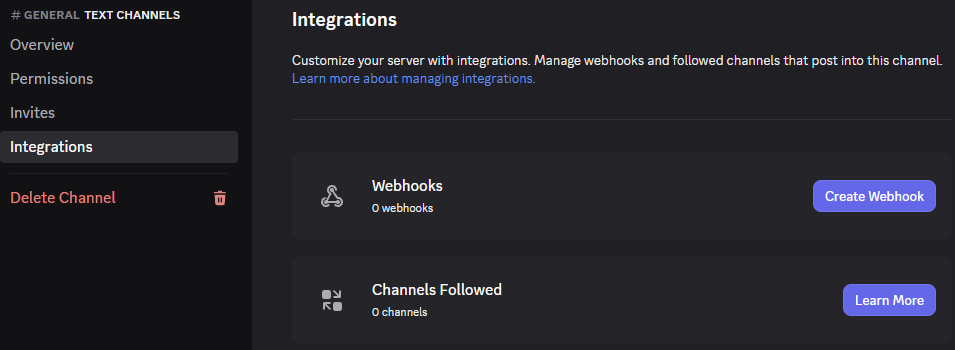
2Open “Integrations” and click “Create Webhook” next to Webhooks. (If the channel already has one, it says “View Webhooks” — open it and click “New Webhook”.)
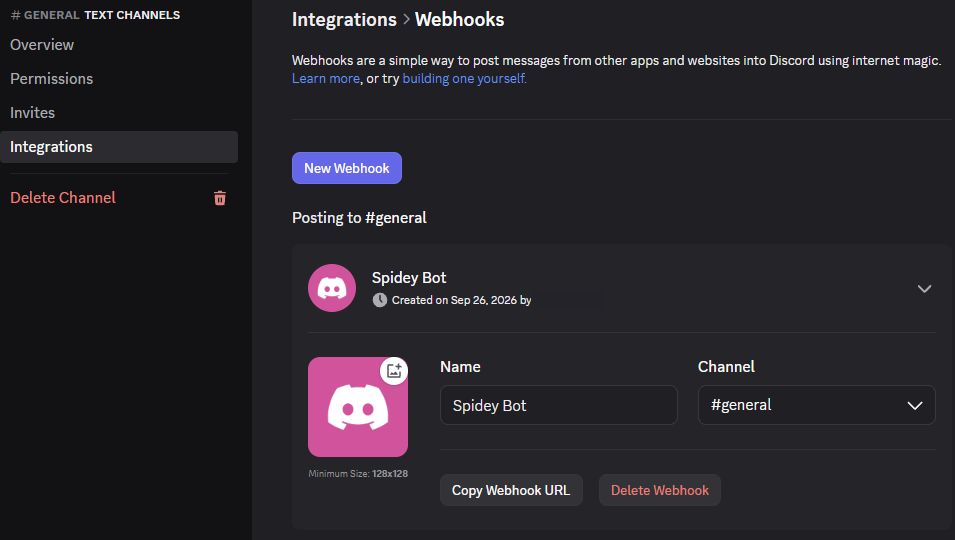
3Discord makes one with a random name such as “Spidey Bot”. Click it to expand; set Name (it is the sender name in the channel) and check Channel.
4Click “Copy Webhook URL” and paste it into Webhook URL. If you renamed it, click “Save Changes” in the bar that appears at the bottom.
Fig. 1Edit Channel → Integrations → Create WebhookFig. 2The new webhook, expanded — Name, Channel and Copy Webhook URL
⚠One webhook, one channel. Deleting the webhook in Discord is how you revoke it.
⚠Discord's desktop app and the web app are the same here; the mobile app hides Integrations on some versions.
Build it
1
Paste the channel's webhook URL
Channel → Integrations → Webhooks. It is scoped to that one channel, and anyone holding it can post there.
Send to DiscordSettings
Webhook URLRequired
write-only
MessageRequired
Run failed on {{ … }}
2
Attach what the run produced
One request carries the screenshot and anything a Convert to File step made. Attachments are capped at 8MB in total — the same figure on every channel, taken from the smallest limit among the ones that accept files, so a workflow behaves the same wherever it is pointed.
#mobile-qaDiscord
remopipeAPP
Checkout failed on Pixel 8 (Android 14).
FATAL EXCEPTION found in the log.
screenshot.pnglogcat.txtui-dump.csv
3
Decide when it should speak
Turn on “Only if a step has failed” for anything unattended. A nightly run that messages you every morning is a run you stop reading; silence should be the good outcome.
Send to DiscordSettings
Attach the last screenshot
on
Attach files made by this run
on
Only if a step has failed
on
What comes out
Nothing the next step needs.
Watch out
⚠Anything past the 8MB total is dropped rather than sent, and the step still succeeds — its note says how many were too large. A missing log is quieter than a failed notification, so read the note.
⚠Use “Save as credential” rather than typing it in: a typed secret is stored with the workflow, so publishing or sharing the workflow shares the secret too.