A team channel that should hear when the nightly run goes red.
Telling whoever pushed the commit that their build does not launch.
Send to Slack
Idle
In the bag
Every setting this block has. A field marked only when appears once you have chosen the mode above it — those are alternatives to each other, not extra things to fill in.
Send via
starts at Incoming webhook URL
A webhook is one URL and one channel, with nothing to authorise — but it can only post text. A bot token posts to any channel it's in and can upload the screenshot.
Incoming webhook URLBot token
Webhook URLRequired
write-only
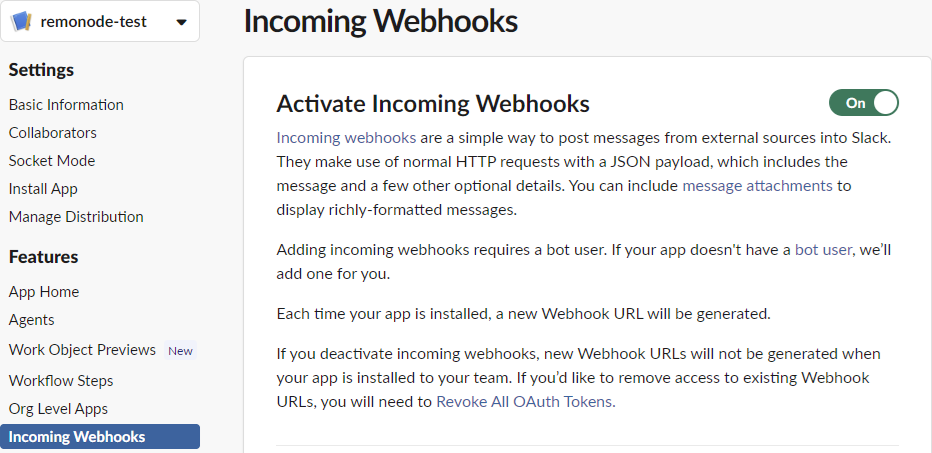
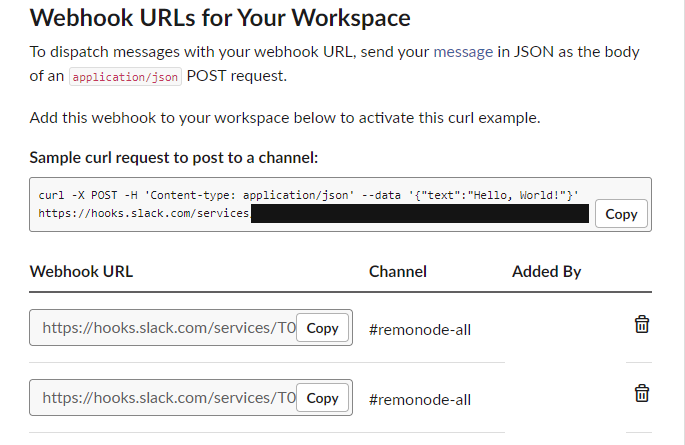
Slack → your app → Incoming Webhooks. Anyone holding it can post as that app.
Channel or @user. The bot must be a member of a private channel.
only when Send via = Bot token
MessageRequired
starts at Run failed on {{ $Device Manual Trigger.json.device }}
Supports {{ }} references to earlier steps, e.g. {{ $Device Info.json.model }} or {{ $Find in Text.json.first }}.
Attach the last screenshot
starts at on
The screen as it was at the last step — usually the whole explanation.
only when Send via = Bot token
Attach files made by this run
starts at off
Anything a Convert to File step produced — a CSV of the UI dump, a log capture.
only when Send via = Bot token
Only if a step has failed
starts at off
Skip the message when every step before this one passed. This is what a nightly regression wants: silence is the good outcome.
Get your keys
What to click on the other service's side to get the values this block asks for. Paste each one in, then use “Save as credential” so it is encrypted and kept out of the workflow.
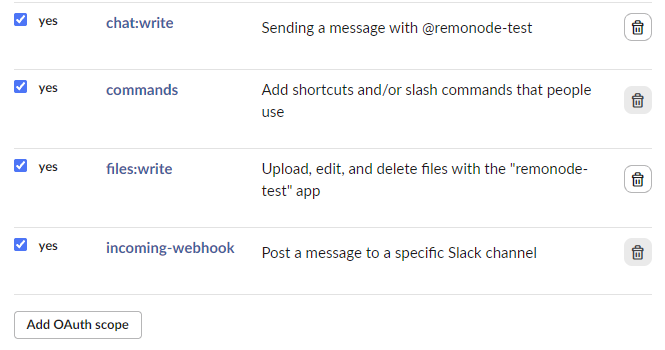
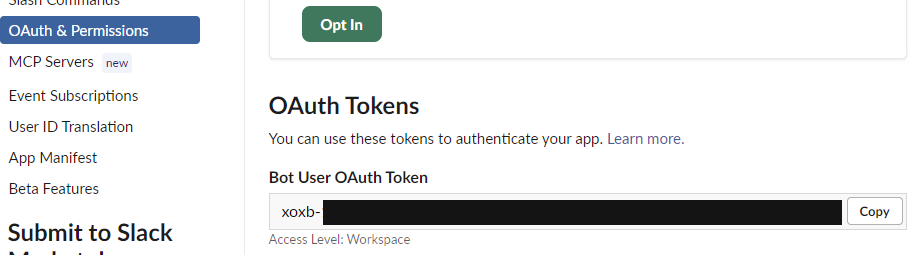
Fig. 1Bot Token Scopes — chat:write and files:write are the two this block needs; the others here come from other features of the same appFig. 2OAuth & Permissions → OAuth Tokens → Bot User OAuth Token
⚠Added a scope later? Slack asks you to reinstall the app, and the token stays the same — but the new scope does nothing until you do.
⚠A private channel always needs the /invite, whatever the scopes say.
⚠Use the Bot User OAuth Token (xoxb-), not the User OAuth Token (xoxp-): a user token posts as you, and stops working when you leave.
Build it
1
Choose how it posts: a webhook, or a bot
A webhook is one URL and one channel with nothing to authorise — but it can only post text. A bot token posts to any channel it is in, and it can upload the screenshot. That choice is the whole difference between the two forms.
Send to SlackSettings
Send viaThe one that can attach
Bot token
Bot tokenxoxb- with chat:write
write-only
ChannelRequired
#qa-alerts
2
Write the message
Reference earlier steps with {{ }} — the device it failed on, the line a log search found. A message that names the phone is a message somebody can act on.
Turn on “Only if a step has failed” for anything unattended. A nightly run that messages you every morning is a run you stop reading; silence should be the good outcome.
Send to SlackSettings
Attach the last screenshotBot token only
on
Attach files made by this run
off
Only if a step has failed
on
What comes out
Nothing the next step needs — it reports and carries on.
Watch out
⚠In webhook mode the attachment switches are not hidden defaults, they are absent: Slack's incoming webhooks have no upload endpoint at all.
⚠A bot has to be a member of a private channel before it can post there.
⚠Uploaded files land in the message’s own thread, not the channel root — six screenshots from six devices in the channel is a channel nobody reads twice.
⚠Use “Save as credential” rather than typing it in: a typed secret is stored with the workflow, so publishing or sharing the workflow shares the secret too.