Files the failure as a Jira issue with the screenshot and the log attached — and comments on the ticket that already exists instead of opening another.
notify.jira
The piece
File the failure in Jira with the screenshot and log attached — and comment on the existing ticket instead of filing a duplicate.
Reach for it when
A failure that needs to become somebody's job rather than somebody's notification.
A nightly run across several phones, where six identical tickets a night would be worse than none.
Create Jira Issue
Idle
In the bag
Every setting this block has. A field marked only when appears once you have chosen the mode above it — those are alternatives to each other, not extra things to fill in.
Site URLRequired
starts at —
e.g. https://acme.atlassian.net — paste the whole address if you like, everything after the host is ignored.
starts at Automated run failed on {{ $Device Manual Trigger.json.device }}
Description
starts at Failed during an automated run. Screenshot, device details and log are attached.
Labels
starts at automated,mobile
Comma-separated. Worth setting — it's how these get triaged apart from hand-filed bugs.
Group into one ticket
starts at on
Find the open ticket already filed by this step and comment on it rather than opening another. Leave this on: six devices failing the same check should be one bug, not six.
Attach the last screenshot
starts at on
The screen as it was at the last step — usually the whole explanation.
Attach files made by this run
starts at on
Anything a Convert to File step produced — a CSV of the UI dump, a log capture.
Only if a step has failed
starts at on
Skip the message when every step before this one passed. This is what a nightly regression wants: silence is the good outcome.
Get your keys
What to click on the other service's side to get the values this block asks for. Paste each one in, then use “Save as credential” so it is encrypted and kept out of the workflow.
You need: An Atlassian account that can browse the project, create issues, add comments and add attachments in it. A dedicated bot account keeps tickets from looking like you filed them.
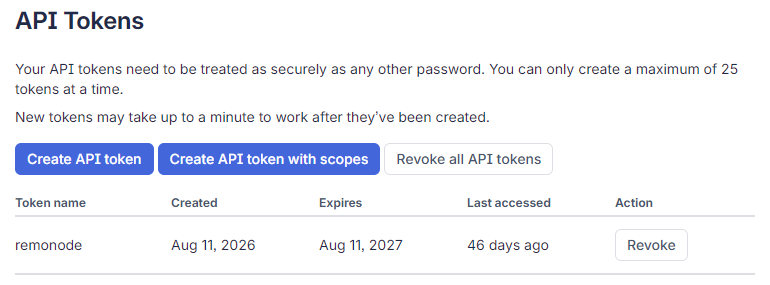
1Sign in to Atlassian as the account the tickets should come from, and open the API tokens page.
2Click “Create API token” — the plain one, not “Create API token with scopes” (a scoped token needs a different address and will be refused here).
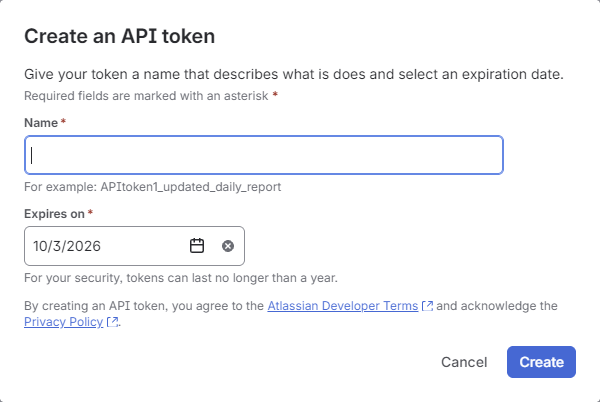
3Fill in Name (e.g. Remopipe), pick an “Expires on” date (a year at most), and click “Create”.
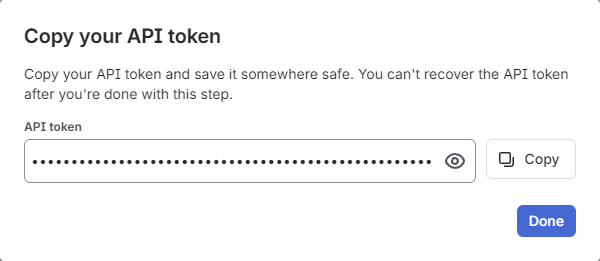
4Click “Copy” — Atlassian shows the token once — then “Done”, and paste it into API token.
5Put that same account's email address into Account email. The token only works together with its own account's email.
Looks like
ATATT3xFfGF0…(about 190 characters)
Fig. 1API tokens — use “Create API token”, not the “with scopes” one next to itFig. 2Name and expiry dateFig. 3Shown once — Copy, then Done
⚠Atlassian tokens expire (a year at most). When runs start failing with 401, this is usually why — make a new one and update the saved credential; the workflows that reference it pick it up.
⚠New tokens can take up to a minute to start working — a 401 straight after creating one is not necessarily a wrong token.
Site URL, space key and work type
1Site URL: the address you open Jira at — https://acme.atlassian.net. Pasting the whole address bar is fine; everything after the host is ignored.
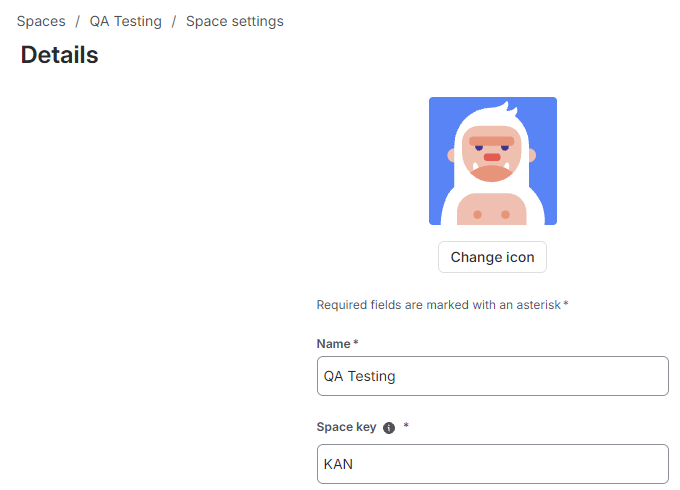
2Project key: open the project and look at any issue key — QA-123 means the key is QA. Newer Jira calls projects “spaces”: the same value is under Space settings → “Details” → “Space key”.
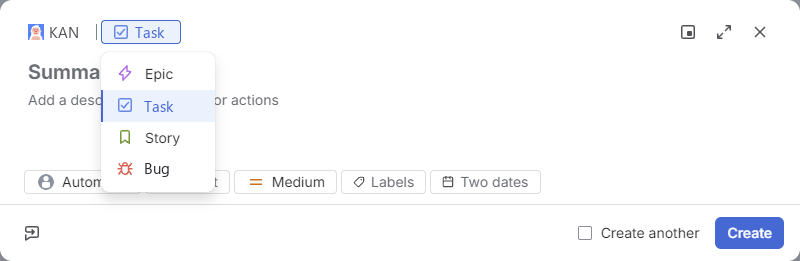
3Issue type: start creating an issue (“Create”) and open the type menu next to the project — Bug, Task, Story… (newer Jira: “work type”). Type one of those names exactly as it is shown.
Fig. 1Space settings → Details — the Space key is the Project keyFig. 2Create → the type menu — Task, Bug, Story… are the names Issue type accepts
⚠A site created in another language names its built-in types in that language. Case does not matter and the English original of a built-in type works too; a name that matches nothing fails with the list of the ones that would.
⚠Turn off the browser's page translation while copying these — it translates the type names and even the key, and the translated words are not what Jira will accept.
Build it
1
Connect the site
Paste the whole address if you like — everything after the host is ignored, which matters because a new Atlassian site's address bar carries a query string that used to send every request to a web page instead of the API. A bot account for the token is worth the five minutes.
Create Jira IssueSettings
Site URLRequired
https://acme.atlassian.net
Account emailRequired
qa-bot@acme.com
API tokenid.atlassian.com → Security
write-only
Project keyRequired
QA
2
Name the issue type exactly as the project spells it
Issue types are per-project and named in the language the site was created in, which is why this is a text field and not a Bug/Task dropdown. The name is checked against the project first — case does not matter, and a built-in type answers to its localised name or its English original. A name that matches neither fails with the list of the ones that would.
QA · BugJira
Automated run failed on Pixel 8
Failed during an automated run. Screenshot, device details and log are attached.
screenshot.pnglogcat.txt
labels: automated, mobile
3
Leave the grouping on
Each ticket carries a fingerprint of the workflow, the step and the summary. The next failure searches for an open ticket with that fingerprint and comments on it. Six devices failing the same check should be one bug.
Create Jira IssueSettings
Group into one ticket
on
Attach files made by this run
on
Only if a step has failedOn by default here
on
What comes out
The issue key it filed or commented on.
Watch out
⚠Grouping finds a ticket that is not in the Done category — In Progress counts as open. Close one and the next failure files a fresh one, which is usually right and a surprise if you closed it without fixing anything.
⚠The grouping is done with a label, so a filed ticket carries an extra remonode-… label alongside yours. That label is what the search matches — stripping it starts a new group.
⚠Labels are worth setting. They are how these get triaged apart from hand-filed bugs.
⚠Use “Save as credential” rather than typing it in: a typed secret is stored with the workflow, so publishing or sharing the workflow shares the secret too.